Tickets & Tasks
View, filter, and manage all tickets and their related tasks across your organization in one place.
Created March 27, 2026
Tickets Page Overview
The Tickets page is where you can view all your tickets and their details. Each ticket entry shows key information at a glance, and you can click into any ticket to see its full history, notes, and associated activity.
Use filters to narrow down the list, customize which columns are displayed, or let the AI assistant help you build more advanced views.
Ticket Organization
The ticket organization toolbar located at the top right of the ticket list allows for many powerful tools to manage tickets.
Filtering Tickets 
Narrow down the ticket list using any combination of the following filters:
- Status — filter by Open, Pending, On Hold, Resolved, or Closed
- Priority — filter by Low, Medium, High, or Urgent
- Agent — show tickets assigned to a specific agent
- Created — filter by ticket creation date or date range
- Department — filter tickets by the department they are assigned to
- Group — filter by team or support group
- Requesters — filter by the person who submitted the ticket
- Category — filter by the type of issue or inquiry
- Due By — filter tickets by their resolution deadline
Column Display 
You can customize which columns are shown in the ticket list to focus on the information most relevant to your workflow.
By default, the following columns are displayed: Subject, Requester, Due Date, State, Status, Priority, & Assigned To
You can optionally enable any of the following additional columns: Type, Source, Tags, Department, Group, Requester Email, Created, Closed At, Resolved At, & Updated.
AI Assistant 
The built-in AI assistant can help you work more efficiently with your ticket data. Use it to create custom filters, sort and group tickets, and calculate totals — without needing to configure everything manually.
Simply describe what you want to see in plain language and the AI assistant will build the filter or grouping for you automatically.
Ticket Management
To access or edit the ticket information page, click this icon: 
Details Panel
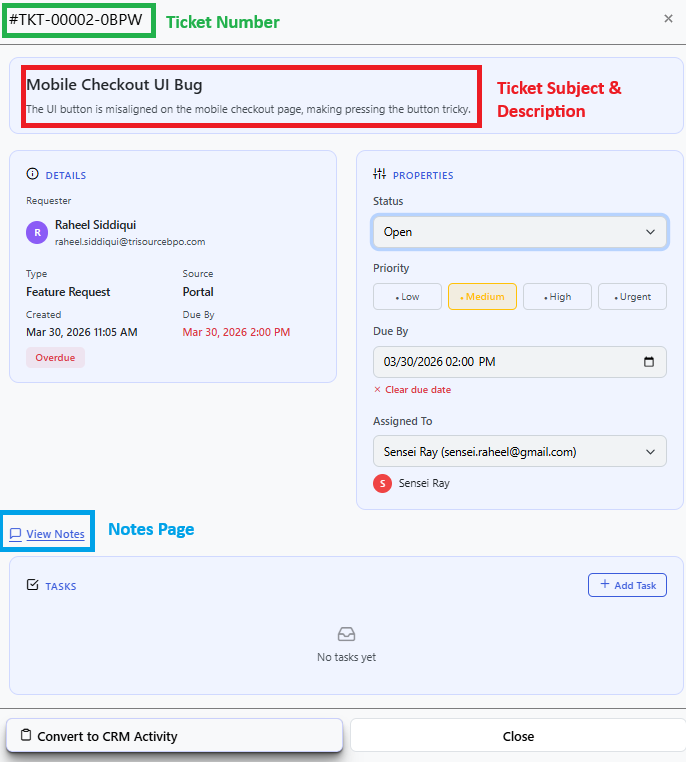
The Details panel displays key metadata about the ticket. It shows the Requester — including their name and email — along with the ticket Type, Source, Created date and time, and Due By date. If the ticket has passed its deadline, an Overdue badge will appear to flag it for immediate attention.
Properties Panel
The Properties panel is where you can update the configurable fields of a ticket. You can set the Status (e.g. Open, Pending, Resolved) using a dropdown, and select the Priority level — Low, Medium, High, or Urgent. You can also set or clear the Due By date and time, and use the Assigned To dropdown to assign the ticket to a specific team member.
You may not be able to modify information in this panel if you are not a manager or administrator.
Notes Panel
Here you can view notes left for this ticket by other users.
Tasks Panel
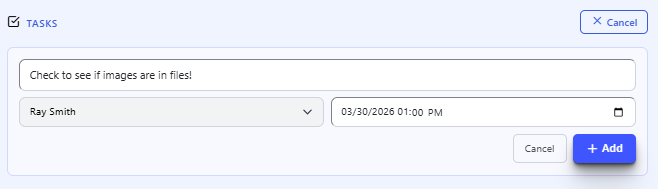
The Tasks panel allows you to break down a ticket into smaller, actionable items and distribute work across your team. Clicking + Add Task opens a form where you can describe the task, assign it to a colleague in your organization, and set a due date. This is especially useful for larger or more complex tickets that require input from multiple team members — keeping everyone aligned and accountable without losing track of the bigger picture.
Tasks Page Overview
The Tasks page is where you can view all your tasks. Each task entry shows key information at a glance. Clicking the information icon takes you to the task's related ticket.
Task Organization
The task organization toolbar at the top right of the task list gives you tools to filter and customize your view.
Filtering Tasks
Narrow down the task list using any combination of the following filters:
- Status — filter by Open, Pending, On Hold, Resolved, or Closed
- Priority — filter by Low, Medium, High, or Urgent
- Agent — show tasks assigned to a specific agent
- Due By — filter tasks by their deadline
Column Display
By default, the task list displays Title, Assigned To, Due Date, and Status. You can optionally enable Priority, Ticket, Created, and Updated to suit your workflow.
AI Assistant
Use the AI assistant to create custom filters, sort and group tasks, and calculate totals — just describe what you need in plain language.