Workflow
Automate ticket routing, escalation, and resolution with configurable workflows.
Created March 27, 2026
Overview
Workflows automate repetitive ticket handling by listening for a trigger, checking ticket details, and then running one or more actions. They help teams route new requests, escalate urgent work, update ticket fields, notify the right people, and add internal notes without manual follow-up.
A workflow is built from connected nodes. Every workflow starts with a Trigger, can branch through Conditions, runs Actions, and finishes with an End node. You can create broad workflows that apply to all tickets or limit a workflow to a specific catalog item.
Common examples include assigning all IT tickets to the IT support group, raising high-priority tickets to urgent status, emailing a requester when a ticket is updated, or adding an internal note when a ticket reaches a specific status.
Creating a Workflow 
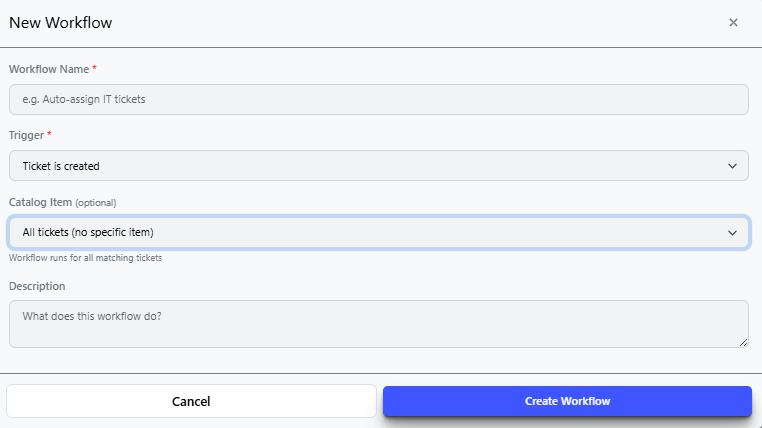
In this menu you can create a workflow which will allow you to automate what happens to a ticket based on what happens with a ticket (trigger). Connect nodes in the workflow screen to create an automated action.
- Select New Workflow from the Workflow page.
- Enter a descriptive Workflow Name so admins can understand what the automation does at a glance.
- Choose the Trigger that should start the workflow, such as Ticket Created, Ticket Updated, Status Changed, or Ticket Assigned.
- Use Catalog Item when the automation should only run for one request type, or leave it set to all tickets when the rule should apply broadly.
- Add a short Description that explains the purpose of the workflow.
- Create the workflow, then connect trigger, condition, action, and ending nodes in the workflow builder.
Nodes
Triggers
Trigger nodes define the event that starts the workflow — every workflow must begin with a trigger that detects a change or action on a ticket.
 Ticket Created
Fires when a new ticket is submitted to the system.
 Ticket Updated
Fires whenever any field on an existing ticket is modified.
 Status Changed
Fires when a ticket's status transitions from one state to another.
 Ticket Assigned
Fires when a ticket is assigned to a team member.
Conditions
Condition nodes evaluate ticket data and branch the workflow down different paths depending on whether the specified criteria are met.
 Check Field
Branches the workflow based on the value of a specific ticket field.
 Check Priority
Branches the workflow based on the ticket's priority level.
 Check Status
Branches the workflow based on the ticket's current status.
 Check Catalog Item
Branches the workflow based on the catalog item type associated with the ticket.
 Check Custom Field
Branches the workflow based on the value of a custom field defined in the catalog.
Actions
Action nodes perform an operation on the ticket — such as assigning it, updating its fields, or sending a notification — when the workflow reaches that step.
 Assign Agent
Automatically assigns the ticket to a specific agent.
 Assign Group
Automatically assigns the ticket to a team or support group.
 Set Status
Changes the ticket's status to a specified value.
 Set Priority
Updates the ticket's priority level automatically.
 Set Department
Assigns the ticket to a specific department.
 Send Email
Sends an automated email notification to a specified recipient.
 Add Note
Automatically adds a note to the ticket as part of the workflow.
Endings
Ending nodes mark the conclusion of a workflow path, signaling that all actions for that branch have been executed and the workflow is complete.
 End
End
Terminates the workflow once all preceding actions have been completed.