Outbound Calls
Step-by-step instructions on how to set up and test an outbound calling agent.
Created: June 5, 2025
Updated: September 16, 2026
Overview
- Go to AI Phone Agents.
- Click the Add New AI Agent button.
From the Create New Agent sheet, choose a template (or Start from blank).
Create New Agent Modal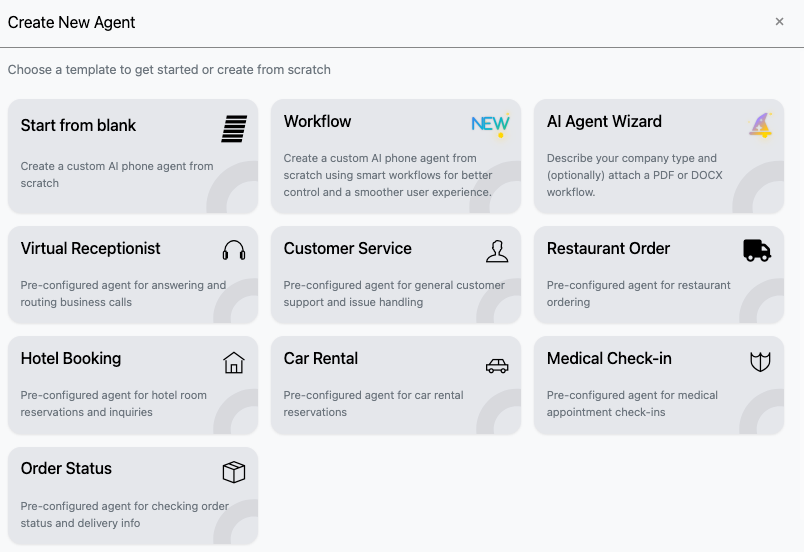
Open the Outbound Agent tab and configure the Welcome Message and Instructions.
New Outbound Agent Form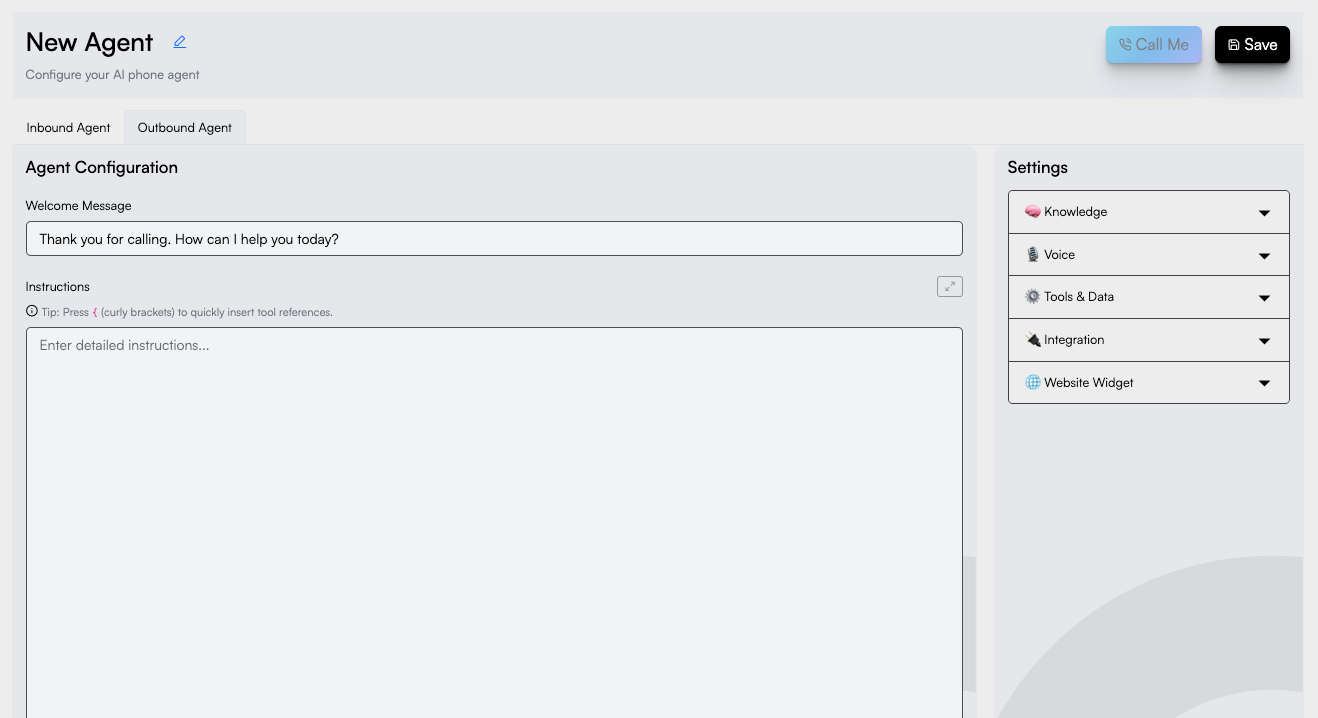
- Click Save.
In the Settings panel, a new ☎️ Telephony section appears after the first save.
Agent Form - Settings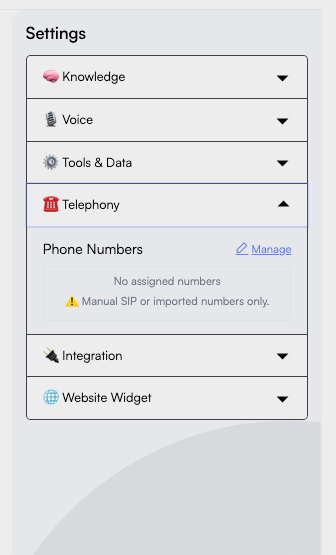
- Click Manage to open Assign a Phone Number.
- Assign a number, set it as the default caller ID, and optionally set Max Call Time (see below).
Assign a Number & Caller ID
On the outbound tab of Assign a Phone Number, the list shows numbers that can place outbound calls: numbers with a SIP termination (manual SIP trunks), Telnyx numbers, and bring-your-own numbers. If you don't have one yet, see Phone Numbers or Elastic SIP Trunking.
- Set as default — each assigned number has a radio labeled "Use this number as the outbound caller ID". Selecting it shows a toast like "{number} set as the test-call caller ID".
- With two or more numbers, the section hints: "Choose which number to use as the outbound caller ID for Call Me tests and batch dials".
- A single assigned number is used as the default automatically. With none, the section shows "No assigned numbers".
- Max Call Time (Minutes) — defaults to
0, meaning no limit. Inbound and outbound have separate values.
Test with Call Me
On the Outbound Agent tab, the header shows a Call Me button. It is disabled, with the reason shown, when:
- The agent has unsaved changes or was never saved ("Save the agent before calling")
- The agent has no instructions
- Your wallet has no credits
- No outbound-capable number is assigned ("Assign a phone number with an outbound SIP trunk configured")
- Click Call Me.
- Enter a Phone Number in E.164 format (e.g.
+18001234567). A 2–6 digit PBX extension also works. - Optionally click Add variables to pass Key/Value pairs (or switch to the JSON view).
- Click Call Me. You'll see "Call started successfully..." and your phone will ring.
How Outbound Calls Start
An outbound agent places calls when triggered by:
- Batch Calls
- Call Me in the agent editor
- The Website Widget "Call me" channel
- The public API (
/api/calls/outbound)
Review completed outbound calls in Call Logs.